Retrieving a computer's hash for intune from faulty or non bootable os
Technical Article: Retrieving a Computer’s Hash for Intune/AutoPilot from a Faulty/Non-Bootable Operating System
In the scenario where an operating system fails to load, retrieving a computer’s hash for Intune/AutoPilot can be essential for troubleshooting and management purposes. This technical guide outlines a step-by-step process to obtain the hash using PowerShell scripts and command-line utilities.
Step 1: Download the PowerShell Script
1.1. Utilize an elevated PowerShell session to execute the following command:
1
2
3

Install-Script -Name Get-WindowsAutoPilotInfo
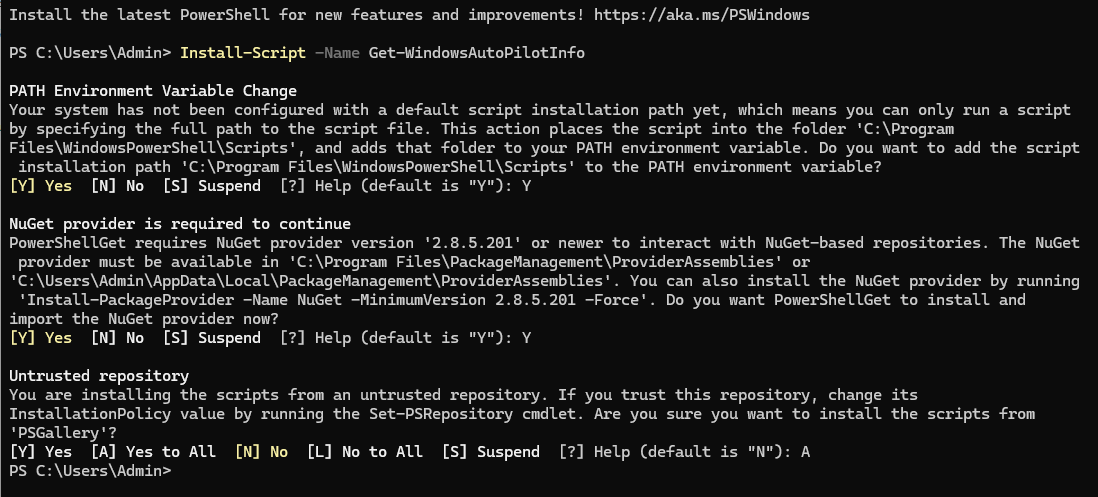
1.2. The script can be sourced from the PowerShell Gallery at: https://www.powershellgallery.com/packages/Get-WindowsAutoPilotInfo
Step 2: Copy Script to USB Drive
2.1. Once downloaded, navigate to C:\Program Files\WindowsPowerShell\Scripts.
2.2. Copy the Get-WindowsAutoPilotInfo.ps1 file to a USB drive.
Step 3: Create .CMD File
3.1. Create a new file with a .CMD extension (e.g., Getintunehash.CMD) using a text editor such as Notepad.
3.2. Insert the following script block into the file:
1
2
3
4
5
6
7
8
9
10
11
12
13
14
15

@ECHO  OFF

echo Enabling WinRM

PowerShell -NoProfile -ExecutionPolicy Unrestricted -Command Enable-PSRemoting -SkipNetworkProfileCheck -Force

echo Gathering AutoPilot Hash

PowerShell -NoProfile -ExecutionPolicy Unrestricted -Command %~dp0Get-WindowsAutoPilotInfo.ps1 -ComputerName $env:computername -OutputFile %~dp0compHash.csv -append

echo Done!

pause
Step 4: Prepare USB Drive
4.1. Ensure the USB drive contains the following items:
- Get-WindowsAutoPilotInfo.ps1
- Getintunehash.CMD
Step 5: Boot into Command Prompt
5.1. Access the boot menu by pressing the F8 key before Windows starts.
5.2. Upon booting, when the Windows Setup dialog appears, simultaneously press Shift + F10 to open Command Prompt.
Step 6: Determine USB Drive Letter
6.1. Use the diskpart utility to identify the drive letter assigned to the USB drive:
- Enter diskpart and then list volume.
- Select the appropriate volume containing the USB drive (e.g., select volume 4).
- Assign it a drive letter (e.g., assign letter=E).
Step 7: Execute Script
7.1. Navigate to the USB drive using Command Prompt.
7.2. Run the Getintunehash.CMD script.
- This script gathers the AutoPilot hash and saves it to a CSV file named compHash.
Following these steps meticulously ensures the retrieval of the computer’s hash for Intune/AutoPilot, even when the operating system fails to load, facilitating seamless management and troubleshooting processes.